Session Replays
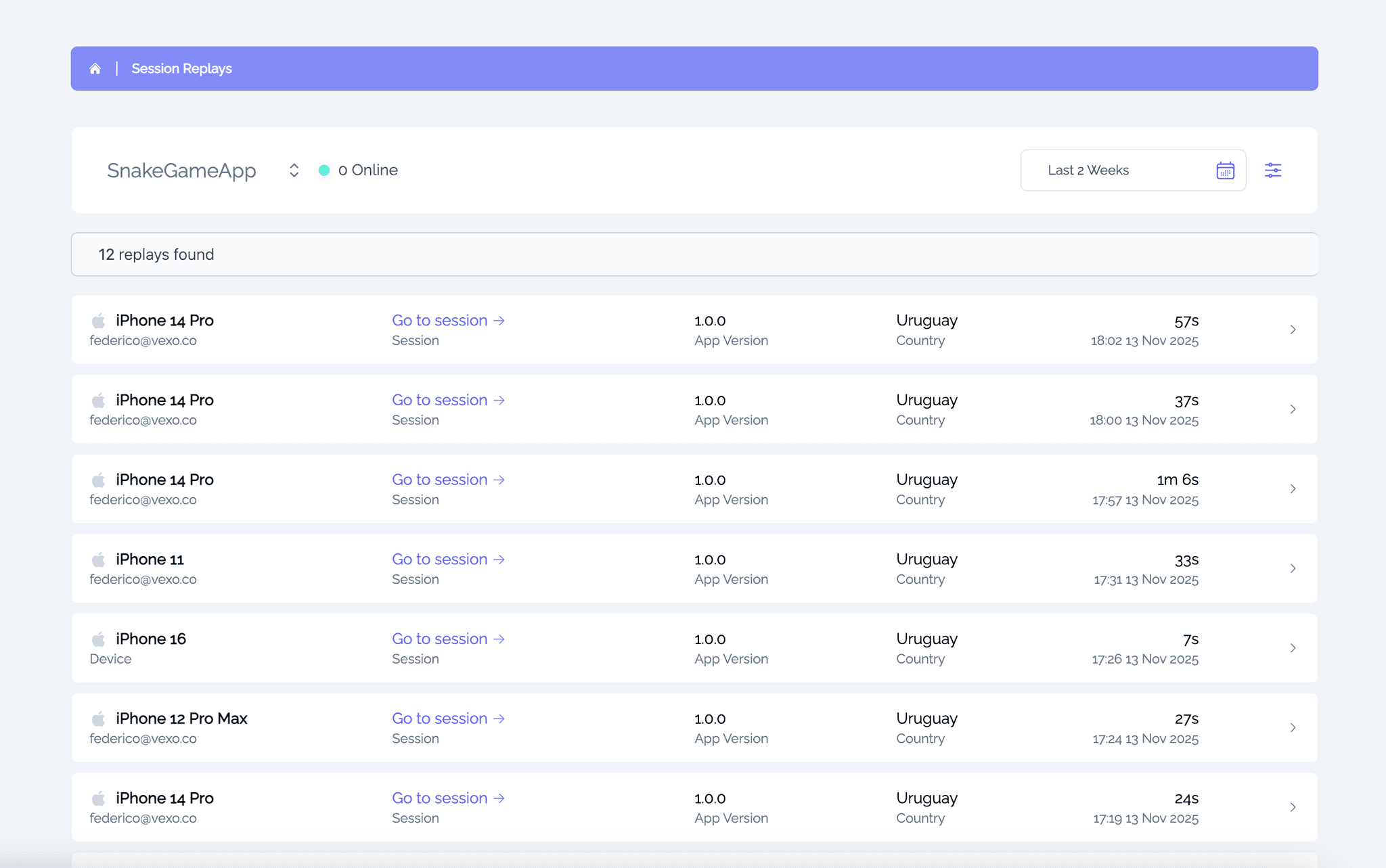
Vexo provides powerful insights into user behavior, helping you make critical business decisions. With Session Replays, you can gain an even deeper understanding. Engaging users with your app is one of the biggest challenges, and Session Replays will let you see what’s happening behind the scenes firsthand. You'll be able to view app activity enhanced by the data you’re already benefiting from.
We’re big on privacy, and we make sure you have control over what’s recorded in Session Replays. You can blur the replay, adjust video duration, and more, so you’re always in the driver’s seat. Plus, we’ve put extra care into making sure replays don’t slow things down—our testing shows no big impact on CPU or memory use. Replay files are pretty lightweight, averaging around 200 KB per minute, and if you’d like, you can set them to upload only over WiFi to save on data.
This feature is great to understand specific behavior from a user, track down bugs from your application, and understand that users are following patterns when using your app.
Heatmaps
Screens & Taps
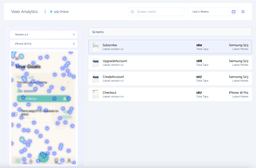
Having a heatmap of where your screen is getting more activity is essential to visualize your most interacted components. It can reveal unexpected user behavior that you might have slipped when designing. For example, if your dashboard with a list of to-do items has taps on the sides, it means that they are dragging to use the control widgets often.
On every tap, we calculate x and y position in the screen and multiply it by the pixel density, so we'll have a generic representation of where
the tap was in the screen, and then be able to show it to you in the most accurate way.
We then aggregate this data into heat points and overlap them in your screen.
We also understand the context of the tap, which means:
- The current screen it's being tapped on
- The current version of your app
- The phone model the device is on
- The heatmap segment, if you've set one (see Segments below)
You can select all of your app versions to see past heatmaps of your screen, and different models to understand different patterns across models adopting your app.
Screenshots
Screenshots are the bread and butter of heatmaps. In order to be able to show you the screen with the heatmaps, we take screenshots of the users based on app version and model device. We understand this is sensible data, so we encrypt the images in the server for security, and restrict the access only to yourself, so you have control about what happens with them, it's yours.
When taking screenshots, we check that the screenshot (by app version, device model, and segment if you've set one) hasn't been uploaded yet, and discard it if it was, or upload it otherwise, pretty simple right?
Note: If you are programatically showing a loading screen inside a screen as a way of loading data, it's possible for you to see a screenshot of your loading screen.
There's nothing wrong on designing your apps this way but it will become harder for you to maintain, and we recommend against it.
Having an independent screen that does Loading is a better way to go, as it isolates responsibilities from your screens, helps transitioning, and secures a better experience while loading data.
Segments
Note: Requires vexo-analytics 1.7.0 or later.
If the same screen renders differently depending on who's looking at it—role-based layouts, A/B test arms, tenant themes—one blended heatmap is meaningless: taps from one layout end up drawn over a screenshot of another. Segments solve this by letting you split heatmaps by any property you choose.
Call setHeatmapSegment as soon as you know which segment the user belongs to, typically right after login:
import { setHeatmapSegment } from 'vexo-analytics'

// After login, or whenever the user's segment is known
setHeatmapSegment(user.role) // e.g. 'admin', 'member', 'tenant-acme'
While a segment is set, both taps and heatmap screenshots are tagged with it, and every combination of screen, app version, device model and segment gets its own screenshot and its own pool of taps. Your admin layout and your member layout stop blending into a single heatmap.
Passing null, undefined or '' clears the segment, and activity goes back to being untagged.
In the dashboard, the heatmap preview gains a Segment dropdown next to the Version and Model selectors. Pick a segment to see the screenshot and taps for just that variant, or pick All to see untagged and mixed data together—exactly what heatmaps show today.
A few things to keep in mind:
- Segment values are strings of at most 64 characters. Longer values are ignored, and we'll warn you in the console.
- An app can have up to 20 distinct segment values. Activity using values beyond that cap is stored untagged.
- Each segment gets its own screenshots, so segments multiply screenshot volume and count toward your plan's heatmap quota (2000 on the free tier). A few coarse segments like roles work better than high-cardinality values like user ids.
- A screen's segmented screenshot is captured on the first visit after the segment is set. If you change the segment mid-session, it applies from the next screen visit onwards.
- Works the same with
react-navigationandexpo-router—heatmaps key on route names, and the segment is orthogonal to them.